
How to Build an Accessible Brand Color Palette
(Without Killing Your Vibe)
You spent weeks — maybe months — finding the perfect brand colors. That warm terracotta, the soft sage, the creamy off-white. They feel so you. And then someone mentions color accessibility and suddenly you’re wondering if you have to scrap everything and rebrand in black and white.
Deep breath. You don’t.
Building an accessible brand color palette doesn’t mean trading in your carefully chosen colors for boring, corporate contrast. It means being strategic about how you use them — and making a few intentional tweaks so that everyone who lands on your website or sees your brand can actually read it, experience it, and connect with it.
Let’s walk through exactly how to do that. Plus, find a full FAQ section at the end of this post for any lingering questions.
Why Accessible Colors Matter for Your Brand (Not Just for Compliance)
Here’s the thing most designers don’t tell you: color contrast issues affect way more people than you might think. We’re not just talking about users with color blindness or low vision — though those folks absolutely deserve a great experience on your site. We’re also talking about someone scrolling your website in bright sunlight, or on a cheap monitor, or with tired eyes at 11pm.
When your text is hard to read, people leave. They don’t think “oh, this is an accessibility issue.” They just feel a vague sense of friction and click away.
Accessible colors keep people on your site longer, reading your content, and trusting your brand. For creative entrepreneurs and business owners, that translates directly to more inquiries, more sales, and a stronger first impression.
Step 1: Understand What You’re Actually Testing
Color accessibility is primarily about contrast — the difference in lightness between your text (or icon) color and the background it sits on. The higher the contrast ratio, the easier it is to read.
The standard most brands aim for is WCAG AA compliance:
- Regular body text needs a contrast ratio of at least 4.5:1
- Large text (18px+ or 14px+ bold) needs at least 3:1
- Icons and UI elements need at least 3:1
If you want a full breakdown of what these levels mean and how they’re calculated, check out [→ link to your WCAG contrast post here].
For this post, we’re focused on the practical side: how to test your palette, spot the problem combos, and fix them without losing what makes your brand yours.
Step 2: Map Out All Your Color Combinations
Most brands have 4–6 colors in their palette. The mistake people make is only testing the obvious pairings — like black text on a white background. But in real life, you’re using your colors in all kinds of combinations: colored text on a colored background, light buttons on dark sections, icons over photographs.
Start by listing every combination you actually use (or plan to use) in your brand:
- Primary text color on your main background
- Reversed text (light on dark sections)
- Button text on button background color
- Accent colors used for headings or highlights
- Any colored cards, callout boxes, or banners
You don’t need to test every possible combination — just the ones that will actually show up in your designs. This is where a lot of time gets wasted. Be practical.
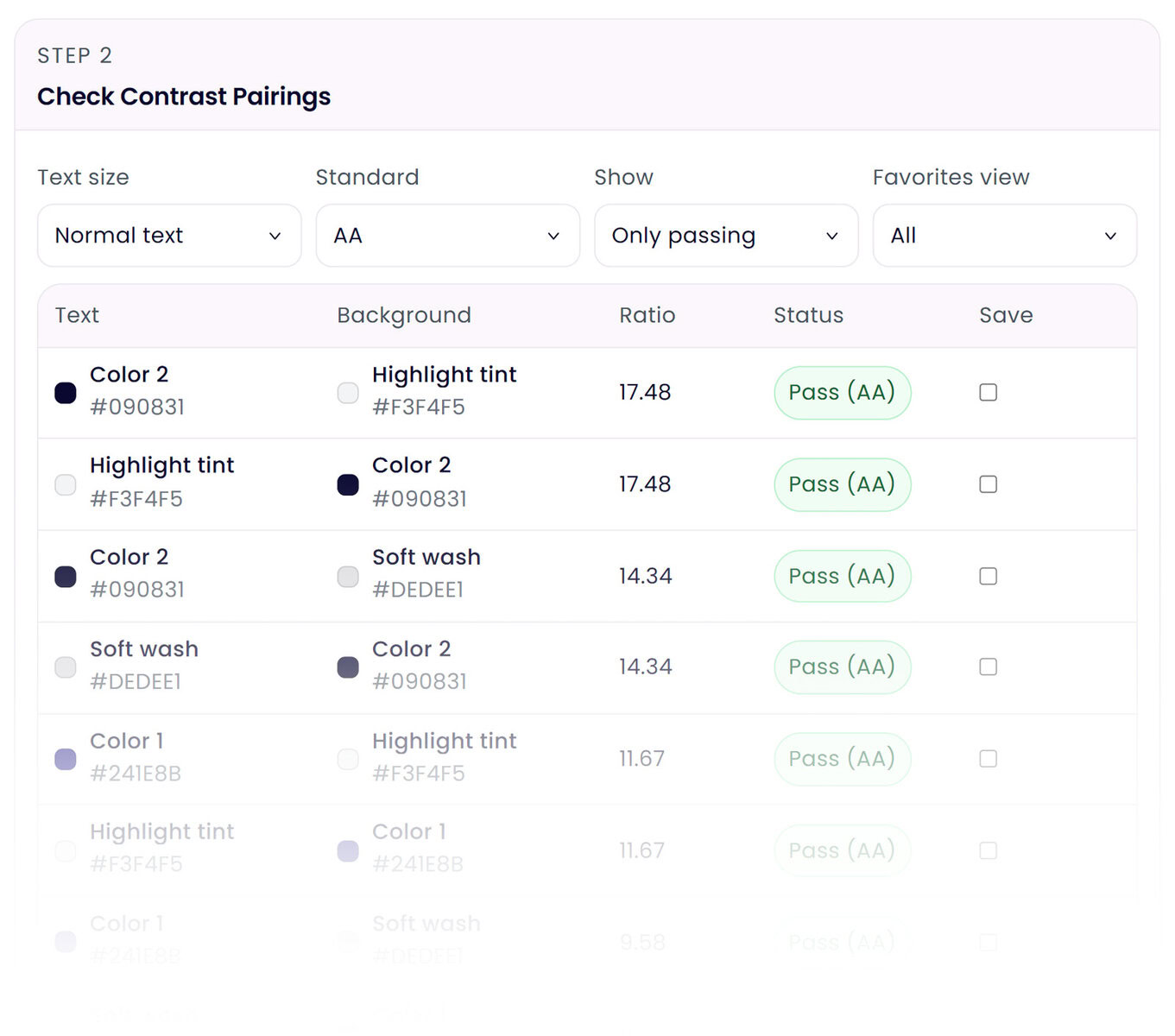
Step 3: Run Your Colors Through a Contrast Checker
Now the fun part (seriously, it’s kind of satisfying once you get the hang of it).
A few tools worth knowing:
Color Contrast Checker — Free, simple, paste in your hex codes and it tells you pass or fail instantly. Great starting point.
Adobe Color Contrast Analyzer — If you’re already in the Adobe ecosystem, this one lets you upload graphics and check contrast across the whole image, not just two flat colors.
Color Palette Lab — This is a tool I built specifically for generating and exploring color palettes. When you’re building a palette from scratch or looking for accessible alternatives to a color that’s failing, it’s a great place to start since you can see how colors play together before committing. (its the one shown above with all the ratios clearly outlined)
Run each of your real-world color combinations through a checker and note which ones pass and which ones fail. Don’t panic when something fails — that’s what the next step is for.
How to Test Your Brand Colors for Accessibility
Testing your colors is simpler than most people expect.
Start by identifying the color combinations you actually use in your designs:
• Body text on your main background
• Headings on colored sections
• Button text on button backgrounds
• Accent text colors used in graphics
Once you know the combinations, run them through a WCAG color contrast checker.
A contrast checker calculates the difference in lightness between two colors and tells you whether the pairing passes accessibility standards.
Some tools require you to test combinations one by one. Others — like Color Palette Lab™ — evaluate multiple color pairings automatically so you can see which combinations pass or fail as you build your palette.
The key is testing the combinations that will actually appear in your brand, not every possible pairing.
Step 4: Decode Your Results (What “Fail” Actually Means)
A failing contrast ratio doesn’t automatically mean that color is banned from your brand. It means you need to be thoughtful about how you use it.
Here’s a practical way to think about it:
If a combo fails for small text but passes for large text: You can still use those colors together — just make sure any text set in that combination is large (think headlines, not body copy) or bold.
If a combo fails entirely: That color pairing shouldn’t be used for any text or essential graphics. But it might still be perfectly fine for decorative elements — a background wash, a subtle border, an illustrated accent. Decorative elements that don’t carry meaning don’t have to meet contrast requirements.
If your brand’s signature color is the problem: This is the most common panic moment. A light blush pink, a soft lavender, a bright yellow — these are beloved by creative brands and notoriously difficult for contrast. The fix is usually one of two things: darken the color slightly until it passes (often just a few steps in value makes the difference), or change what’s on it. Instead of white text on pale pink, try deep charcoal. Your pink stays, your text becomes readable.
How to Fix a Brand Color That Fails WCAG Contrast
Sometimes a brand color fails accessibility tests, especially lighter shades like blush pink, pale lavender, or soft yellow.
That doesn’t mean you need to remove the color from your brand entirely. In most cases, a few small adjustments solve the issue.
Common fixes include:
• Darkening the color slightly until the contrast ratio passes
• Switching the text color (for example using deep charcoal instead of white)
• Using the color as a background or accent instead of text
• Reserving the pairing for large text or headlines
Often the difference between failing and passing contrast standards is only a small shift in lightness or saturation.
The goal isn’t to remove your brand colors — it’s to define how they should be used so your brand stays readable everywhere.
Step 5: The Tricky Colors (And How to Handle Them)
Let’s talk about the ones that come up most often with my clients:
Yellow: Almost impossible to use with white text. Yellow is inherently light, so white on yellow fails practically every time. The solution is to always pair yellow with very dark text — a near-black or deep navy — and use yellow as a background or accent, never as text itself.
Light pink & blush: A favorite in wellness, beauty, and creative brands. Usually fails with both white and light gray text. Go darker on your text color — a warm dark brown or deep burgundy often looks intentional and beautiful rather than like a contrast fix.
Pale lavender & soft sage: Same issue — these gentle, desaturated tones need a strong dark paired with them. Think deep plum with lavender, or dark forest green with sage. The pairing can actually elevate the palette when done well.
Bright or neon colors: High saturation doesn’t equal high contrast. A bright coral and white is a common fail. Again — darken the coral slightly or switch to dark text.
The key mindset shift: you’re not removing colors, you’re defining rules for how they’re used.
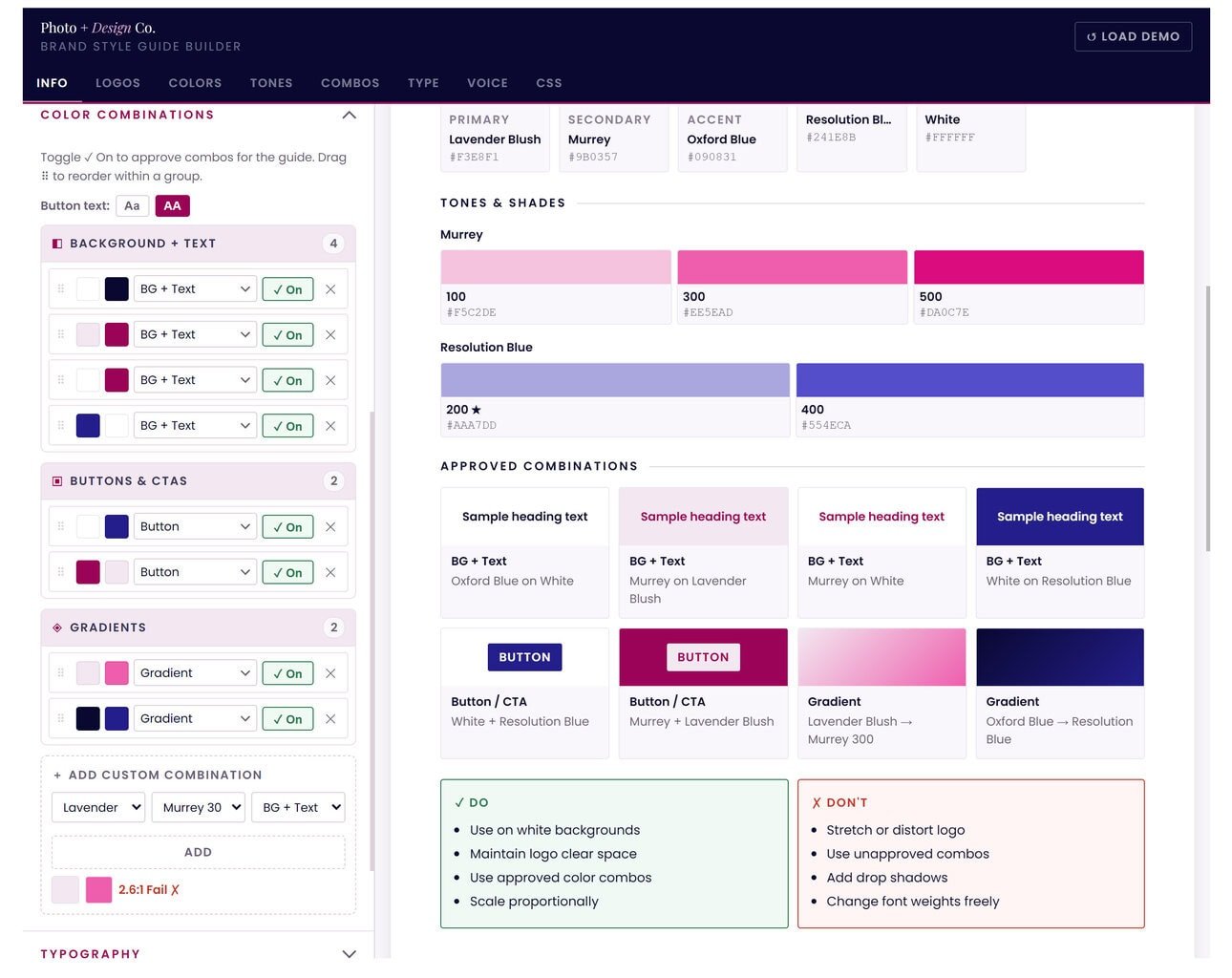
Step 6: Create Your Approved Color Combination Guide
Once you’ve tested everything and made your adjustments, document it. This is something I build for every branding client — a simple reference that shows exactly which color pairings are approved for text, which are approved for decorative use only, and which to avoid entirely.
It doesn’t have to be fancy. Even a simple grid showing each combo with a ✓ or ✗ next to it will save you (and anyone else who touches your brand) a ton of guesswork later.
If you do want to get fancy, the Brand Style Guide Builder is the place to do just that. Create beautiful brand style guides in minutes!
This is especially important if you have a team, a VA, a social media manager — anyone creating content in your brand. Clear rules make it easy for everyone to stay consistent and accessible without needing to run every graphic through a checker each time.
The Bottom Line
An accessible brand color palette isn’t a limitation — it’s a sign of a thoughtful, professional brand. It says you care about every single person who encounters your work, and that you’ve built something that holds up across every screen, every environment, every user.
And honestly? Working within these constraints tends to make palettes better. When you can’t just slap any two colors together, you end up making more intentional, cohesive choices. Your brand looks more refined, not less.
Start with your existing palette, test your real-world combinations, and make small adjustments where needed. In most cases, you’ll find that a few minor tweaks are all it takes to get to fully accessible — with your vibe completely intact.
FAQ: Accessible Color Palettes for Brands
What is an accessible color palette?
An accessible color palette is a set of brand colors that meet readability standards when used together for text, backgrounds, and interface elements. Accessibility mainly comes down to color contrast, which measures how easily text can be read against the background behind it.
The most widely used standard is WCAG (Web Content Accessibility Guidelines), which recommends a minimum contrast ratio of 4.5:1 for normal text and 3:1 for large text or UI elements.
An accessible palette doesn’t mean limiting your creativity. It simply means making sure your colors work together in ways that people can actually read.
Do I have to change my brand colors to make them accessible?
Usually, no.
Most brands don’t need to replace their colors — they just need to adjust how those colors are paired. For example, a soft blush pink might fail with white text but pass perfectly with a deep charcoal or burgundy.
Accessibility is rarely about scrapping your palette. It’s about choosing the right combinations for text, backgrounds, and accents.
How do you test if your brand colors are accessible?
To test accessibility, you run your color combinations through a WCAG contrast checker. These tools calculate the contrast ratio between two colors and tell you whether the combination passes or fails accessibility standards.
You’ll want to test the combinations you actually use, such as:
- Text color on your primary background
- Button text on button colors
- Light text on dark sections
- Accent colors used in headings or UI elements
This is where tools like an accessible color palette builder or contrast checker can save a lot of time by automatically evaluating color pairings.
What is an accessible color palette builder?
An accessible color palette builder is a design tool that helps you create brand palettes while automatically checking WCAG contrast ratios.
Instead of generating colors and testing them later, these tools evaluate color combinations in real time so you can see which pairings pass accessibility guidelines.
In Color Palette Lab™, for example, each color pairing is automatically tested for:
- Text on background contrast
- WCAG AA and large text standards
- Passing and failing combinations
This makes it much easier to design palettes that are both beautiful and readable.
What colors are hardest to make accessible?
Certain colors are naturally more difficult to use for text because they are very light in value. The most common challenges include:
- Yellow
- Pale pink
- Soft lavender
- Light sage
- Bright coral with white text
These colors often work best as background or accent colors paired with dark text rather than being used for text themselves.
The good news is that small adjustments — like darkening a color slightly or switching the text color — can usually solve the issue.
Is WCAG compliance required for every website?
WCAG accessibility guidelines are technically legal standards for many public-facing websites, especially government sites and larger organizations.
However, even for small businesses and creative brands, accessible colors are simply good design practice.
Readable colors:
- Improve user experience
- Reduce friction when people read your content
- Make your website usable in different lighting environments and devices
Accessibility isn’t just compliance — it’s thoughtful design.