How to Make Seamless Repeat Patterns in Photoshop (Plus a Free Pattern Generator)
If you want to turn your artwork into repeat patterns, there are now two easy ways to do it.
For quick motif-based repeats, I built Pattern Playground, a free tool that lets you upload a single motif, experiment with repeat styles like straight, half-drop, and mirrored layouts, play with color, and export a seamless pattern right in your browser. It’s a simple, playful way to make repeat designs fast, especially when you’re working with a single illustrated element.
If you want more control, or you’re building layered surface pattern designs with multiple elements, Adobe Photoshop still opens up a lot more possibilities.
Use the free tool when you want speed. Use Photoshop when you want depth.
Here’s how to make seamless patterns in Photoshop from your artwork.
how to easily create patterns in photoshop from your artwork
Step 1: Digitize Your Artwork
Scan your painting or take a high-resolution photograph of it. Save the image file to your computer and open it in Adobe Photoshop.
Step 2: Clean Up Your Artwork in Photoshop
Use Photoshop’s tools, such as the Healing Brush and Clone Stamp, to clean up any imperfections or blemishes in your artwork. Adjust levels, contrast, and brightness as needed to enhance the clarity and vibrancy of the image.
Step 3: Create a Square Repeat Canvas
Create a new document in Photoshop with a square canvas size. The dimensions of your canvas will depend on the size and scale of your pattern. For example, a 12×12 inch canvas is a common size for creating repeat patterns.
Now you’re Ready to Start Making Your Pattern
Step 4: Build Your Pattern Repeat
Select the portion of your artwork that you want to use for your pattern. Copy and paste it onto your canvas, positioning it in the center. Use guides and gridlines to help you align and evenly distribute your artwork within the canvas.
Step 5: Use Pattern Preview for Seamless Repeats
To create a seamless repeat, duplicate your artwork layer and move it horizontally or vertically to fill in the gaps between the original artwork. Use the Transform tools to adjust the position and orientation of the duplicated layers until the pattern seamlessly repeats across the canvas. The View > Pattern Preview option inside Photoshop might be your new best friend here!
This video created by Adobe Photoshop is under 2 minutes and will show you how to use this feature!
Step 6: Refine the Repeat
Zoom in on your pattern and carefully inspect it for any visible seams or irregularities. Use Photoshop’s blending modes, layer masks, and adjustment layers to seamlessly blend the edges of your artwork and create a smooth transition between the repeating elements.
Step 7: Add Secondary Motifs and Texture
Enhance your pattern by adding additional elements such as textures, shapes, or hand-drawn motifs. Create new layers for each element and experiment with different blending modes and opacity levels to integrate them seamlessly into your design.
Step 8: Export Your Pattern for Print or Digital Use
Once you’re satisfied with your pattern, merge all layers and save the document as a high-resolution image file. Export your pattern as a JPEG or PNG file ready for printing or use in digital applications.
Planning on sending these for print? You’ll want to research color profiles for printing like CYMK vs RGB for best results.
Congratulations! You’ve successfully transformed your painting into a stunning pattern using Adobe Photoshop. By following these simple steps, you can unleash your creativity and bring your artwork to life in exciting new ways. So, fire up Photoshop, start creating, and let your imagination soar as you explore the endless possibilities of pattern design!
Want a faster way to experiment with simple repeat patterns? Try my free Pattern Playground tool to generate seamless repeats from a single motif in seconds.
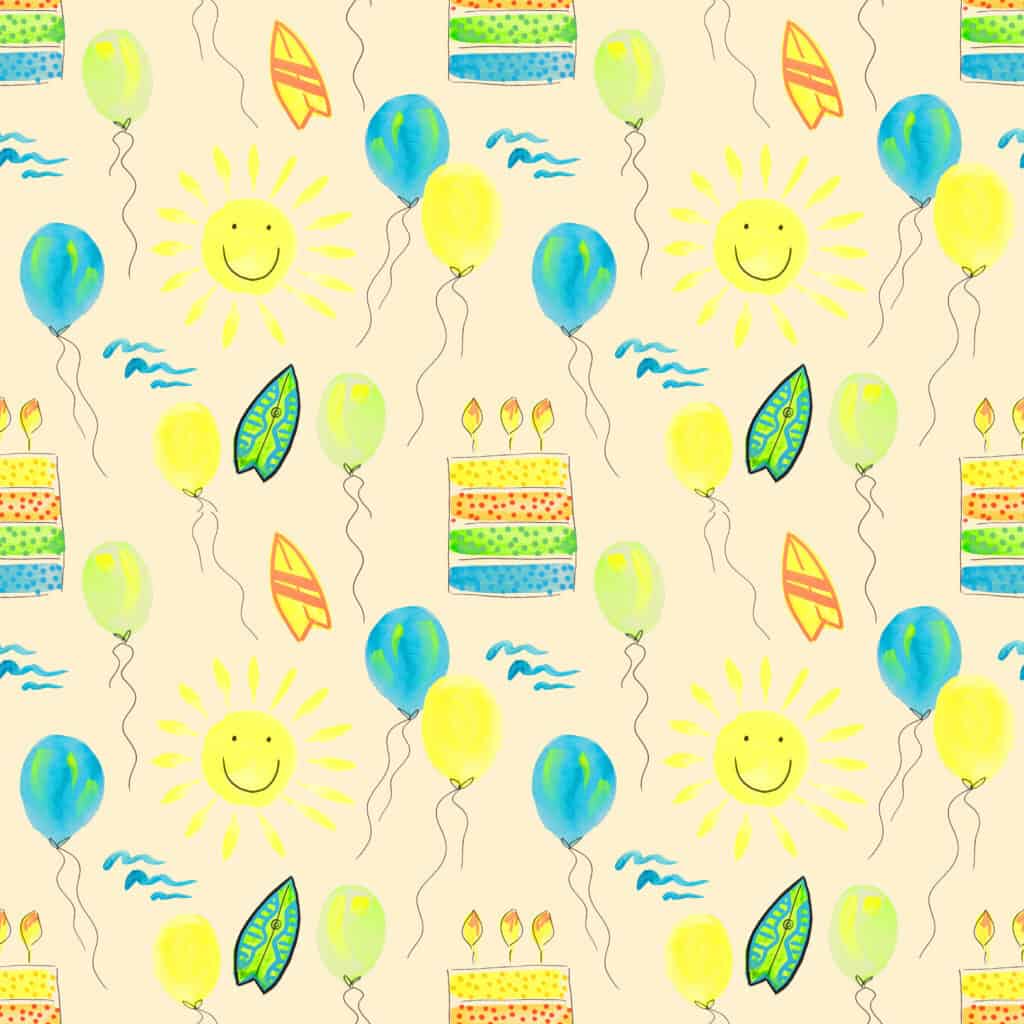
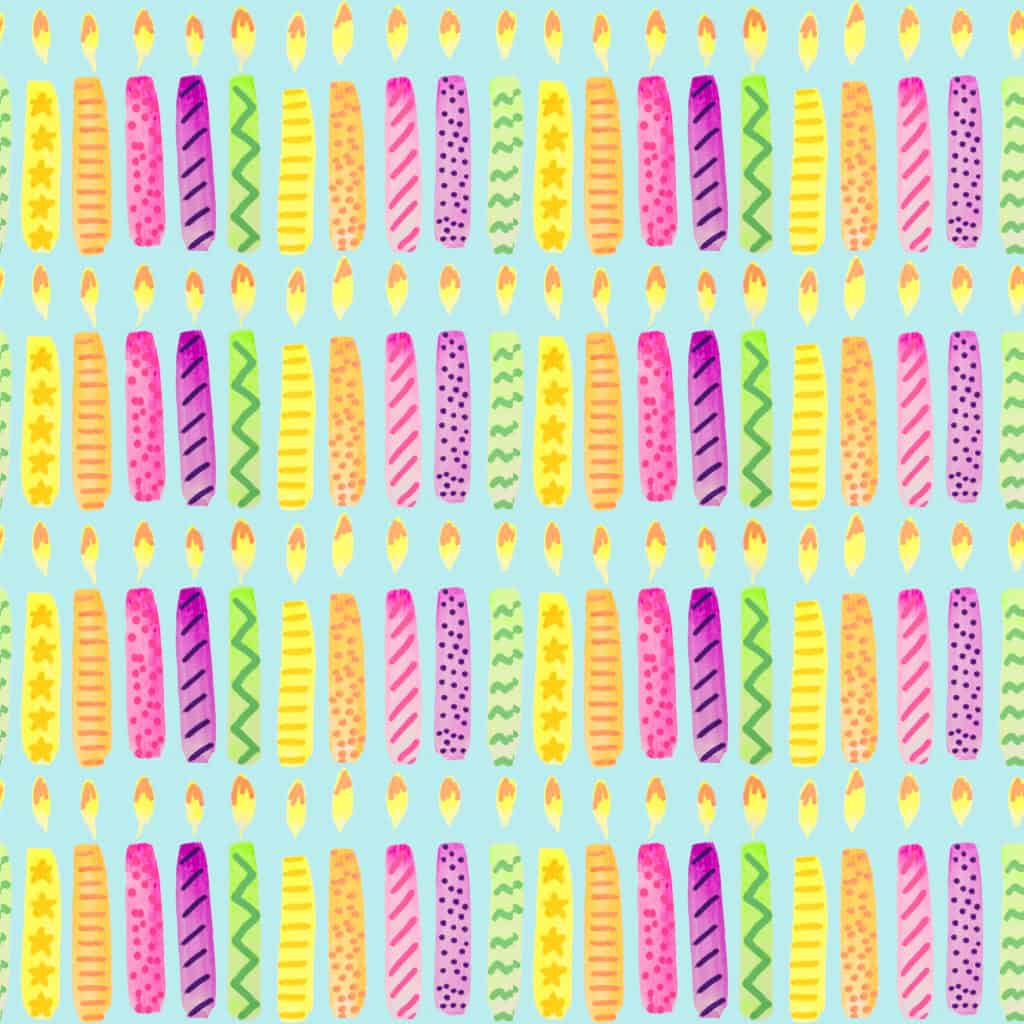
some of the patterns i’ve created with this exact method